
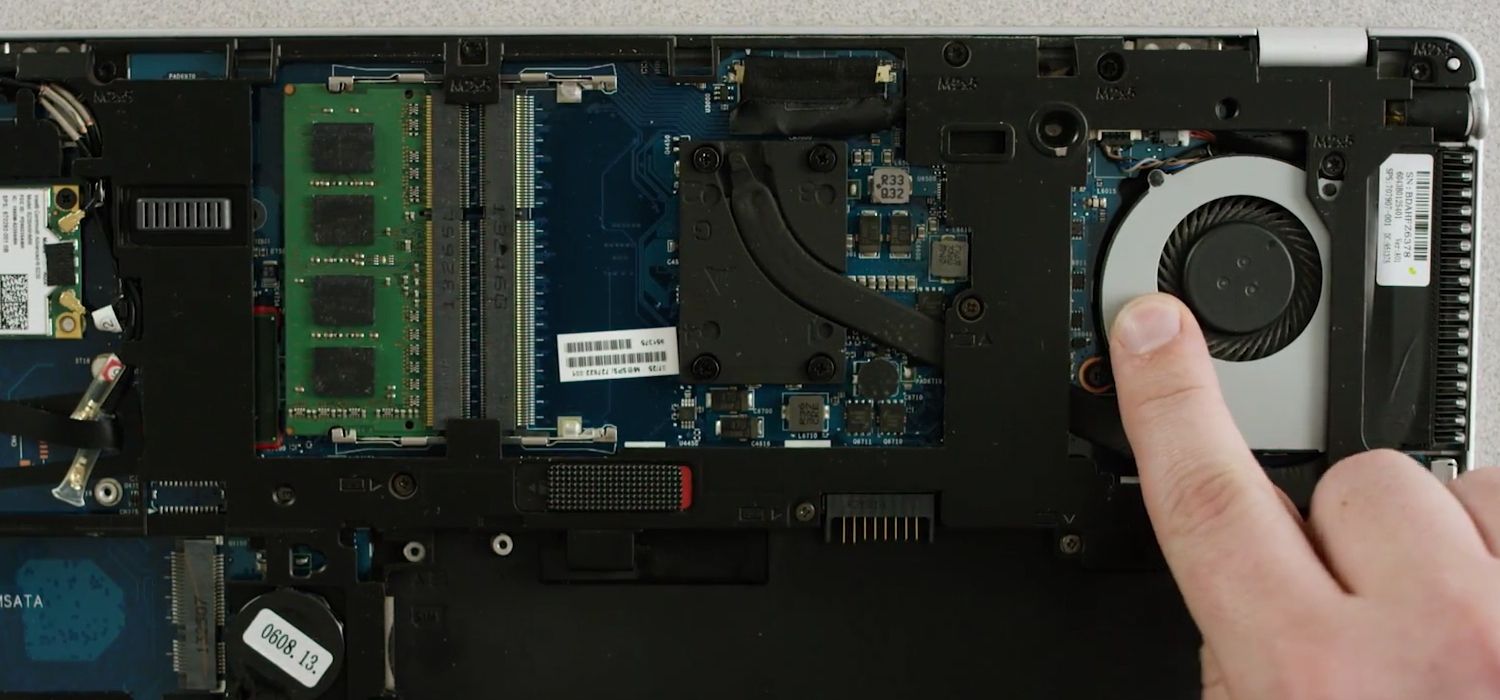
INSTALLING & UPGRADING RAM IN A LAPTOP
0 Comments | 27/09/2022 | 09:04 AM | 19 | 2 minute readIt's simple to upgrade laptop RAM.
The only equipment needed to add or upgrade RAM in a laptop is a screwdriver. Decide how much more memory you want to install first.
Upgrade to a solid state drive from your hard drive for additional performance gains.
The importance of compatibility
The amount of RAM that each laptop needs, how the RAM is configured, what kind of memory it uses, and how much storage space it needs are all unique to each laptop. You must be aware of what functions with your system because each laptop is different.
How to upgrade your laptop's memory
Your computer will run quicker with more responsiveness, and multitasking will be easier. The benefits are immediate, and installation just takes ten simple steps.
RAM (Memory) upgrade for laptops
Although installing memory may be completed in a few minutes, there is no need to rush. Work at your own speed and refer to this manual.
1. Gather materials. Make sure your installation area is cleared and that you are operating in a static-safe setting. Remove any paper or plastic bags from your workplace before doing this. Afterward, you'll require the following things:
- the laptop you are using
- laptop memory
- Screwdriver
- Owner's guide
2. Your laptop should be turned off. Your files, documents, and data are not impacted by adding RAM since they are stored on your storage drive rather than your random access memory.
3. Disconnect the power cord.
4. Take the battery out. For further instructions, refer to your owner's handbook. You don't need to do this if your laptop doesn't have a replaceable battery.
5. Keep pressing the power button for five seconds. Any remaining electricity in the system is discharged as a result. No need to keep the power button down if your battery cannot be removed.
6. Pry the case open. Consult your system's owner's handbook for advice on how to open it. To help putting things back together easier, you may also use your phone to capture photographs that show where wires or screws are joined.
7. Take a deep breath. During installation, touch an unpainted metal surface as an additional safety measure to prevent static damage to your memory and other components.
8. Discard any memory modules that are currently installed. To release the module, detach its side clips. Take the RAM modules out of the slots after that.
9. install RAM in a computer. Align the module's notches with the slot's ridge while holding the modules by their edges, then firmly press the module into place while applying even pressure. The module needs roughly 30 pounds of pressure to be installed completely.
10.Reinstall the battery before closing the laptop's casing.
It's now time to install your RAM! Start the computer and take pleasure in how much more responsive and capable of running memory-intensive programmes it is today.

Crucial by Micron
No Comments found for this post !
You may also like
No popular post found !

How to clean a laptop keyboard?
0 Comments 01/07/2023 10It’s slightly more complicated to clean a laptop...

How to clean Monitors?
0 Comments 01/07/2023 16Cosmetic damage on the casing is one thing, but if...
Peripheral Maintenance and Tips
0 Comments 01/07/2023 9In this article, we'll provide maintenance tips an...

The Essential Guide to Keyboards
0 Comments 01/07/2023 153Keyboards are the primary input devices for most c...




















Leave a comment